Tiled Sprite
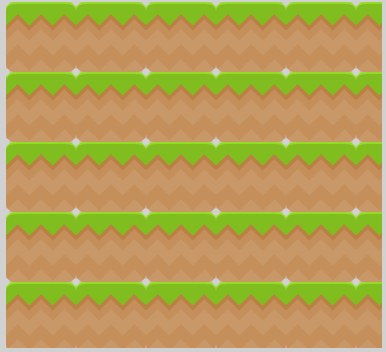
A tiled sprite object allows us to use repeating images in our games. increasing the width or height of the object will cause it repeat it's image, rather than stretching the image like a normal sprite object.
A tiled sprite object can be used to create platforms in a platform game, health bars, status bars, repeating wall tiles, repeating backgrounds, etc.
Add a tiled sprite object
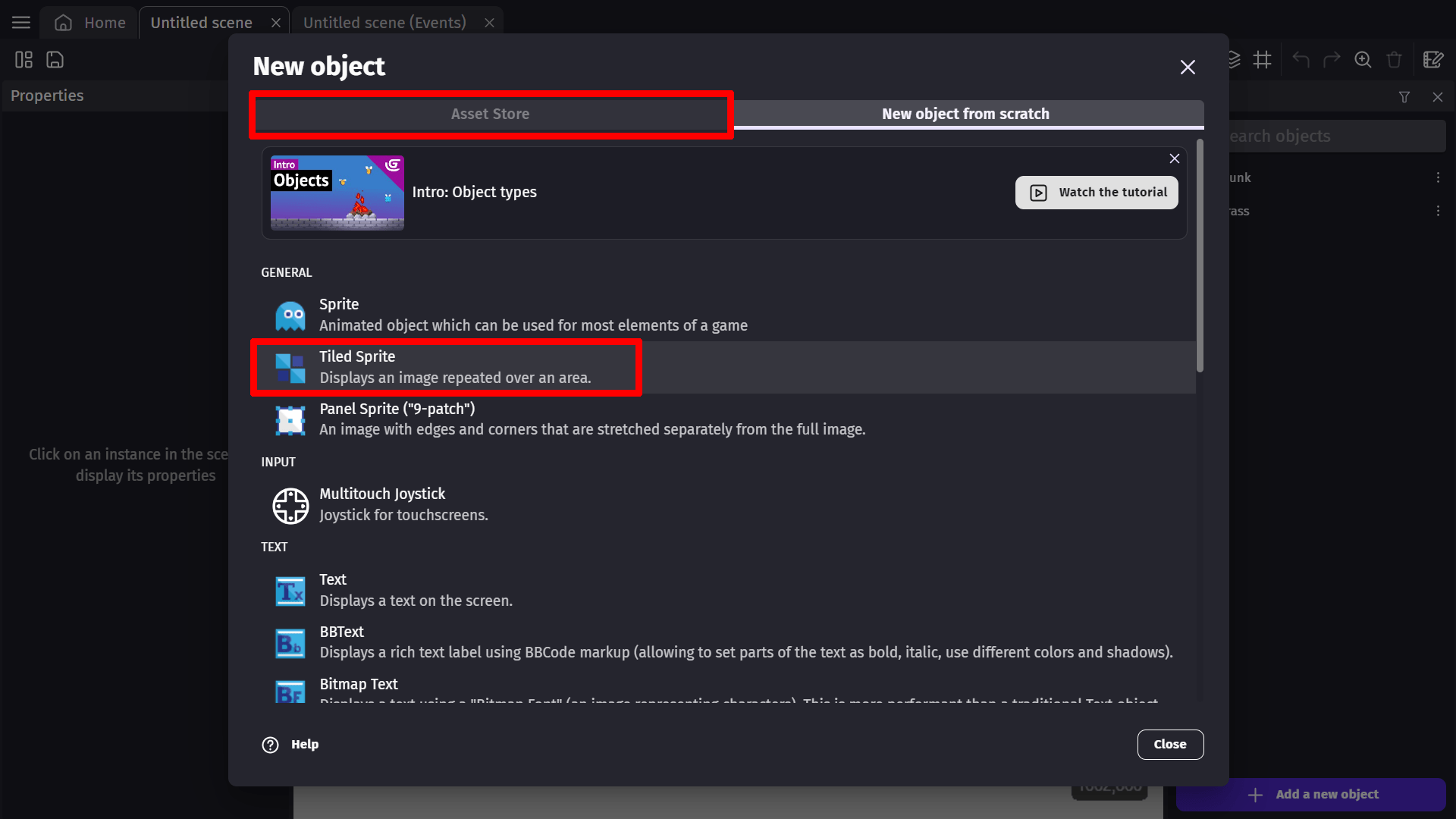
To create a new Tiled Sprite object, click the "Add a new object" button at the bottom of the Objects list, and select "Tiled Sprite" from the window that opens. Alternatively, you can search through the asset store to add an already made tiled sprite object to the scene.
Open object properties
After creating the object or adding it to your game from the asset store, you can examine the object's properties.To open the newly created object's properties, right-click on the object and selecting "Edit object" from the popup list that appears, or double click on the object.
Add an image
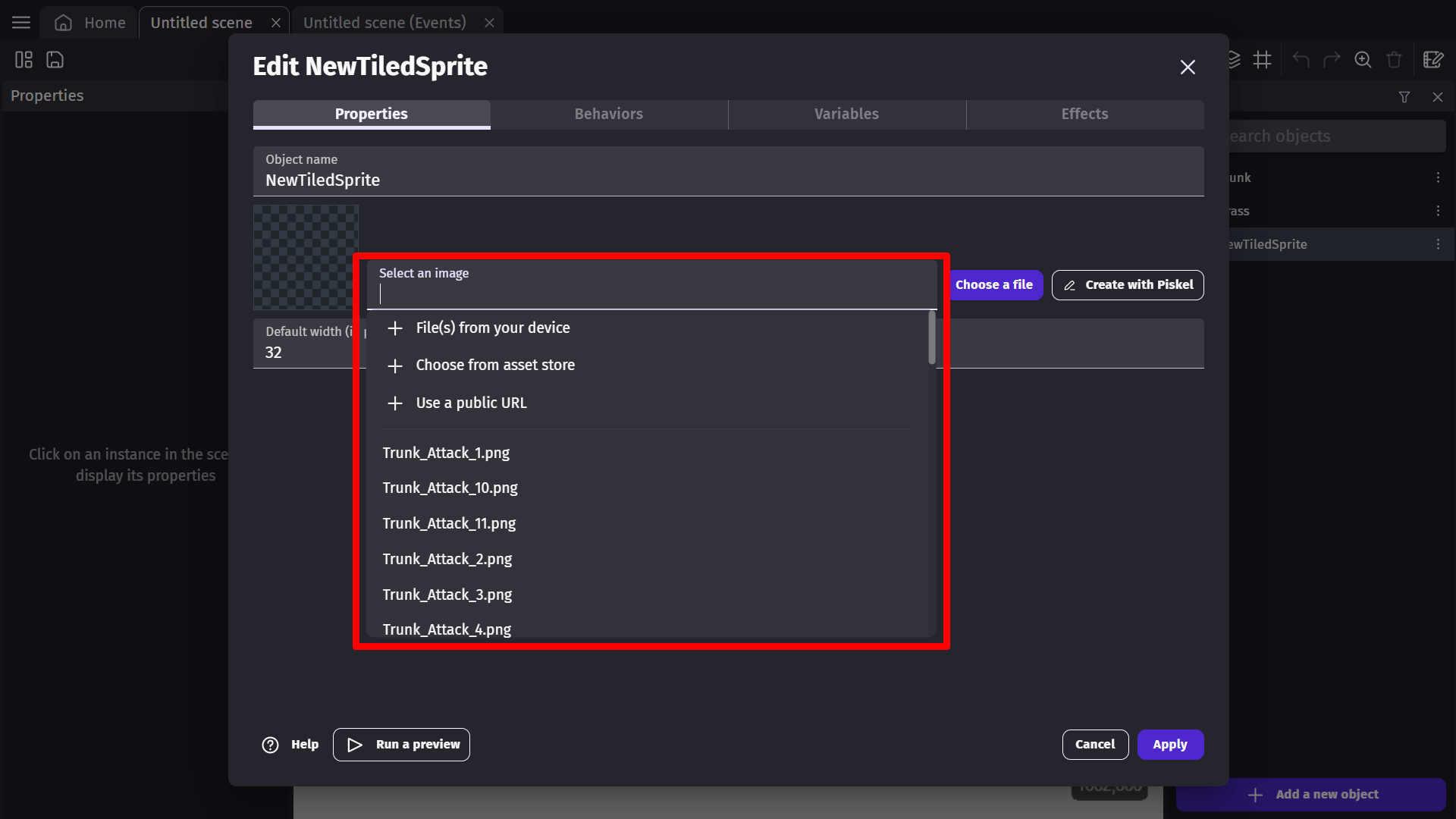
With the object's properties window open, you can add an image to the object by clicking in to the "Select an image" text field. From the drop down menu that appears you can chose where the image will come from. Chose the source of the image, and select the image you want to add. The selected image will be displayed in the preview window on the left.
Change default size
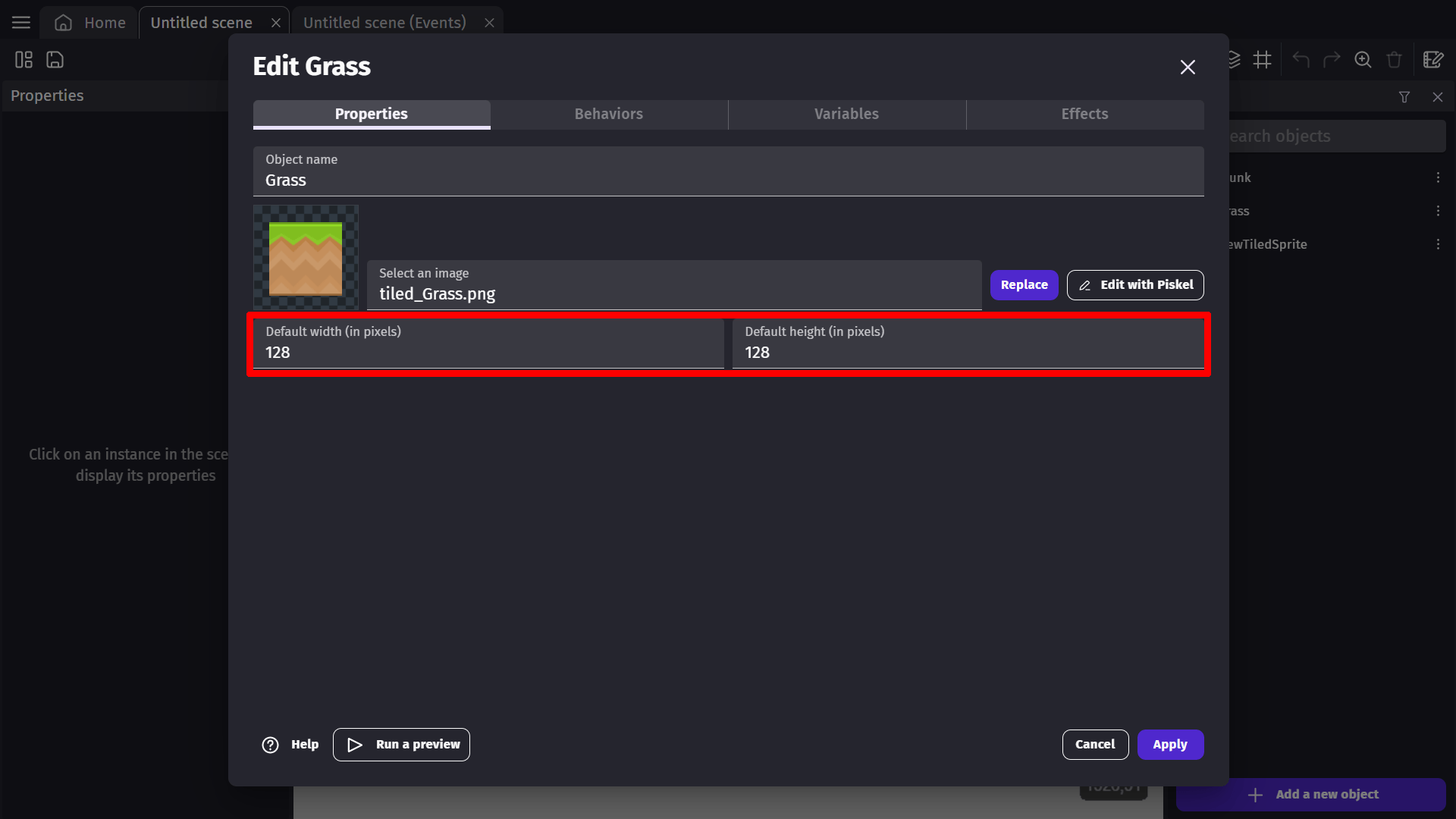
We can change the default size of the tiled sprite object by changing the Default width and Default height value in the object's properties window. This size will determine the size, in pixels, that the object will appear in game when placed.
This will not scale or alter the original image in any way, just the default size of the object when it's placed in to the scene. This size should be the height and width of the image used in pixels.
Scale the object
The size of the tiled sprite effects how much of your image is going to be visible in your game. If the image used in the tiled sprite object is larger than the size it's scaled to in scene, only a portion of the image will be visible.

If the object is scaled to be larger in pixels than the image used, then the object will repeat the image to fill in the excess space.
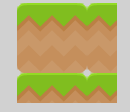
You can use events to manipulate the scale and positioning of a tiled sprite object like any other object. Tiled sprites also have a few actions and conditions that are specific to them.
Scroll the image with offsets
The Image X offset and Image Y offset actions shift the image inside the object without moving the object itself. Because the image repeats, gradually increasing an offset every frame makes the texture appear to scroll endlessly, which is the usual way to create scrolling backgrounds, moving conveyor belts, flowing water, and similar effects.

Tint and opacity
Like sprites, tiled sprites can be tinted and faded:
- The Tint color action multiplies the image by a color (the default, white, leaves the image unchanged). This is handy for reusing the same texture in different colors, or for flashing effects.
- The Opacity action and condition control transparency, from 0 (fully transparent) to 255 (fully opaque).
Examples
Tip
See it in action! 🎮
Open this example online.

Reference
All actions, conditions and expressions are listed in tiled sprite object reference page.